Summary: Building audit checklists in Excel introduces significant risks to quality management programs, including version control failures, data entry errors, lack of real-time visibility, and difficulty maintaining compliance with ISO 9001, IATF 16949, and other standards. These common mistakes can inflate audit completion times, compromise data integrity, and make it nearly impossible to track corrective actions across multiple sites. Transitioning to purpose-built audit management software eliminates these risks while providing automated workflows, standardized templates, and instant access to quality KPIs.
Want to know where you stand compared to other compliance leaders? Then take our Digital Audit and Inspection Management Readiness Quiz.

Audit checklist Excel templates are still common in quality teams, but they often create more risk than leaders expect. From version control issues to weak evidence tracking, spreadsheet-based audits can slow corrective actions, reduce consistency, and make compliance harder to maintain at scale.
Audit and inspection checklists are the backbone of any effective quality management system. Whether you are conducting internal process audits under ISO 9001, supplier assessments aligned with IATF 16949 or VDA 6.3, or facility inspections under FDA cGMP requirements, a well-structured checklist ensures consistency, traceability, and compliance. Many Quality Managers, Plant Managers, and Quality Engineers still rely on Microsoft Excel to build and manage these checklists across their global operations.
However, regardless of its perceived capabilities, Excel remains error-prone, heavily reliant on individual expertise, and difficult to scale. Reports have shown Excel spreadsheet error rates commonly around 90% – costing companies millions of dollars in rework, scrap, and compliance gaps. These errors directly impact quality KPIs such as non-conformance rates, first pass yield (FPY), and cost of poor quality (COPQ). What’s more, Excel macros – necessary for complex spreadsheets – are often blocked by antivirus and malware protection programs when spreadsheets are shared via email, creating bottlenecks that slow time to resolution on critical findings.
Organizations can quickly and unknowingly create problems in their Excel-based audit checklists. Whether it stems from poor template design, outdated paper-based audit habits carried into digital formats, or missing automation capabilities, these issues erode audit completion rates and cross-site comparability. This article examines 11 common mistakes quality teams make when using Excel for audit checklists and provides practical solutions to help you avoid them.
Looking for ready-made checklists? Access Certainty’s free checklist library tailored for safety, quality, supply chain, and ESG audits and inspections – designed to help you streamline your processes and avoid common pitfalls.
Download Your Free Excel Compliance Checklists >
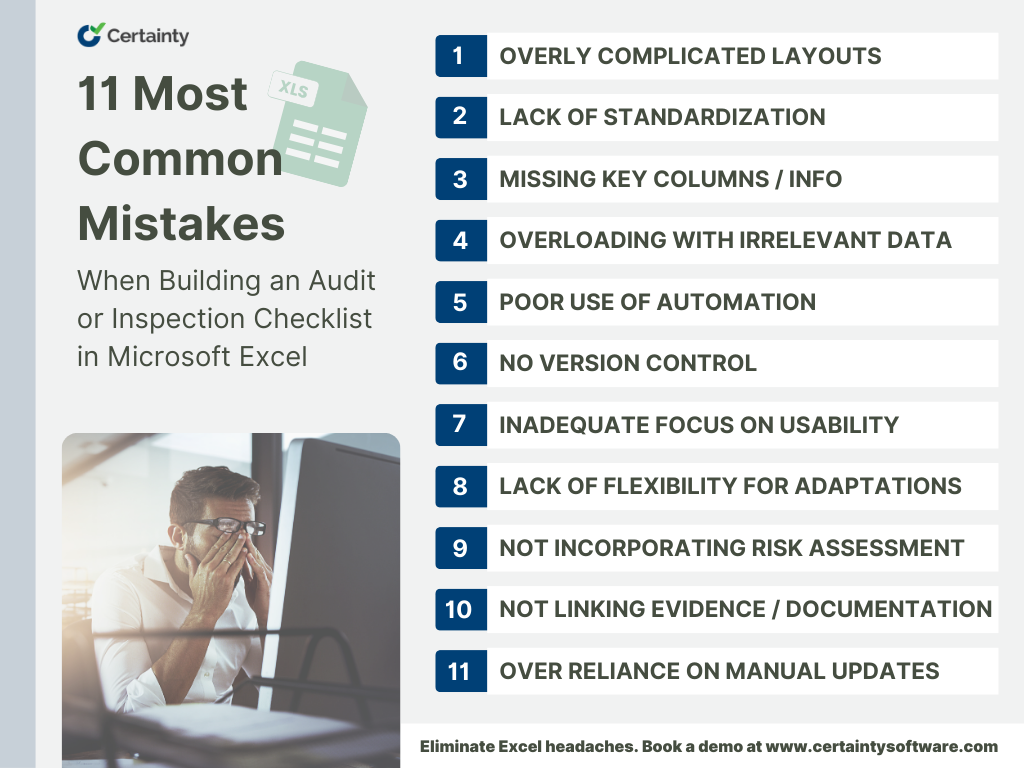
1. Overly Complicated Audit Checklist Excel Layouts
Mistake: Constructing spreadsheets with overly complicated layouts, including excessive merged cells, deeply nested sections, and inconsistent formatting. This is especially common when quality teams try to replicate paper-based audit forms in Excel without rethinking the design for a digital format.
Impact: A cluttered and overly complex layout makes the checklist difficult to read, navigate, and update. Auditors conducting ISO 9001 internal audits or supplier assessments under IATF 16949 may struggle with confusing structures, increasing the likelihood of errors, incomplete audits, and audit fatigue across multi-site operations.
Solution:
- Use a clean, consistent structure with clearly labelled columns and rows that mirror audit clause numbering (e.g., ISO 9001 clause references).
- Avoid merging cells excessively, as this disrupts sorting, filtering, and cross-site data aggregation.
- Group related audit items logically and utilize simple formatting to ensure clarity across all locations.
- Test the layout with auditors in real field conditions to confirm that it is intuitive and user-friendly.
The Certainty Solution:
Certainty Software provides pre-designed templates with clear and consistent layouts, removing the risk of overly complicated designs. Certainty organizes all audit points logically and makes them easy to navigate, which improves user experience, reduces errors, and supports higher audit completion rates.
2. Lack of Standardization
Mistake: Using inconsistent formats, varying terminologies, or different question styles across sections of the checklist. This is a common issue when multiple sites or departments each create their own Excel templates independently.
Impact: When language and formatting are inconsistent, auditors may misinterpret or overlook critical control points. This lack of standardization undermines cross-site comparability, makes it nearly impossible to benchmark non-conformance rates across facilities, and leads to failed external certification audits.
Solution:
- Develop and implement a standardized template for all audit checklists aligned to your quality framework (ISO 9001, IATF 16949, VDA 6.3, or FDA cGMP). Define fixed formats for columns, headings, and response types.
- Include a glossary or reference section to clarify technical terms, acronyms, or abbreviations used across your QMS.
- Write all questions in a uniform style, starting with action verbs (e.g., “Verify,” “Inspect,” “Review”) to ensure consistency.
- Periodically review and update the template to ensure it reflects current regulatory requirements, organizational standards, and lessons learned from previous audits.
The Certainty Solution:
With Certainty Software, users can create standardized checklists that maintain consistency in formatting, terminology, and structure across all audits and sites. This ensures clarity, uniformity, and reliable data collection for enterprise-wide quality reporting.

30+ Audit and inspection checklists free for download.
3. Missing Key Columns or Information
Mistake: Failing to include critical columns such as audit criteria references, compliance status, assigned responsibilities, due dates, risk severity, or corrective action fields.
Impact: Omitting essential information reduces the checklist’s effectiveness as a tracking and accountability tool. Without proper fields for corrective and preventive actions (CAPA), your team may overlook non-conformances, delay follow-up actions, and see time to resolution increase significantly.
Solution: Include these key elements to ensure the checklist captures all necessary details for a robust quality audit:
- Audit Criteria: Specify the requirement, standard clause, or regulation being evaluated (e.g., ISO 9001:2015 Clause 8.5.1).
- Compliance Status: Provide options such as Conforming/Non-Conforming/Observation/Opportunity for Improvement for clear tracking.
- Evidence Required: Specify the documentation or objective evidence needed to verify compliance.
- Assigned Responsibility: Identify the person or team responsible for addressing each finding and implementing corrective actions.
- Comments/Observations: Allow space for auditor notes, root cause analysis, follow-up actions, and findings.
The Certainty Solution:
Certainty Software helps you avoid missing important details by providing customizable checklists that come with all key fields included. Certainty also lets its users add supporting evidence like photos, documents, or notes right in the system, creating a complete audit trail for regulatory compliance.
4. Overloading with Irrelevant Details
Mistake: Filling the checklist with unnecessary or redundant items that do not align with the audit’s scope, objectives, or the applicable quality standard requirements.
Impact: Including irrelevant details clutters the checklist, wastes auditors’ time, and contributes to audit fatigue – a significant concern for quality teams managing high-frequency audit schedules. This leads to lower audit completion rates and diluted focus on critical non-conformances.
Solution:
- Align the checklist content with the specific scope and objectives of the audit, mapping each item to a relevant standard clause or regulatory requirement.
- Eliminate duplicate or low-priority items to streamline the checklist and reduce audit fatigue.
- Focus on high-impact areas by consulting Process Improvement Leads or reviewing past audit findings, non-conformance trends, and COPQ data.
- Regularly refine the checklist based on management review outputs and continuous improvement initiatives.
The Certainty Solution:
Certainty Software helps organizations tailor their checklists to align with specific audit objectives and quality framework requirements, removing unnecessary items and focusing on high-priority areas. This ensures audits are efficient, impactful, and drive measurable improvement.
5. Poor Data Validation and Automation in Excel
Mistake: Not leveraging Excel’s built-in features like data validation, conditional formatting, or formulas to improve usability and accuracy. Many quality teams still rely on paper-based audit habits, manually entering and reviewing every data point.
Impact: Relying entirely on manual data entry raises the chance of errors, inconsistencies, and missed non-conformances. This weakens the trustworthiness of audit results and makes it difficult to track quality KPIs such as first pass yield (FPY) and audit completion rates accurately.
Solution:
- Utilize dropdown menus for standardized responses (e.g., Conforming/Non-Conforming/Not Applicable/Not Audited).
- Apply conditional formatting to highlight overdue corrective actions, non-conformances, or critical findings that need immediate attention.
- Incorporate formulas to automatically calculate compliance percentages, non-conformance rates, and summary metrics for management review.
- Use macros or scripts to automate repetitive tasks such as generating audit reports, flagging incomplete sections, or rolling up data across sites.
The Certainty Solution:
The platform leverages data validation, conditional logic, and automation to reduce manual effort. Features like dropdown menus, auto-calculated quality metrics, and real-time data syncing enhance accuracy and streamline audit processes across your entire operation.
6. No Version Control for Audit Checklists
Mistake: Failing to manage different versions of the checklist, resulting in multiple copies or edits without tracking changes. This is a frequent issue when Excel files are shared via email across multiple sites.
Impact: Without version control, it is nearly impossible to identify the most current and approved version of the checklist. This creates confusion, increases the likelihood of using outdated or non-compliant information during audits, and is a common finding in ISO 9001 and IATF 16949 external certification audits under document control requirements.
Solution:
- Implement clear naming conventions for checklist files, such as “Audit_Checklist_v1.0_ISO9001_2025” with revision dates.
- Maintain a version log that records changes, including dates, authors, approval status, and a summary of updates.
- Store files in a centralized location, such as a shared drive or document management system, with controlled access rights that meet ISO document control requirements.
- Use Excel’s Track Changes feature in collaborative environments to monitor and review edits before approval.
The Certainty Solution:
Certainty Software tracks all changes and maintains version histories automatically, with full audit trails that satisfy document control requirements under ISO 9001, IATF 16949, and FDA cGMP. Users can access previous versions instantly, ensuring clarity and eliminating confusion over outdated checklists.
7. Inadequate Focus on Usability
Mistake: Ignoring user-friendly design features like font sizes, contrast, and spacing. These are critically important for auditors working in field conditions such as manufacturing floors, cleanrooms, or warehouse environments.
Impact: Poorly designed checklists are difficult to read and complete, especially in challenging environments like production areas, dimly lit rooms, or outdoor locations. This reduces audit efficiency, increases error rates, and contributes to audit fatigue – leading auditors to rush through or skip checklist items entirely.
Solution:
- Use readable font sizes (10-12pt for most content) and ensure high contrast between text and background for better visibility on the shop floor.
- Ensure you provide sufficient space for handwritten notes if you are still transitioning from paper-based audits to digital formats.
- Include clear section headings that map to audit standard clauses for improved navigation.
- Test the checklist in real-world audit conditions with your Quality Engineers and Plant Managers to identify and address usability issues.
The Certainty Solution:
Certainty Software is designed with usability in mind, featuring mobile-friendly interfaces, clear fonts, and customizable layouts. Auditors can easily access and complete checklists on tablets or smartphones in any environment, including manufacturing floors, remote facilities, and field locations.
8. Lack of Flexibility for Adaptations
Mistake: Designing rigid checklists that are difficult to modify for different audit scenarios, locations, regulatory frameworks, or product lines.
Impact: A lack of flexibility limits the checklist’s adaptability, making it harder to customize for facility-specific requirements, different quality standards (ISO 9001 vs. IATF 16949 vs. FDA cGMP), or evolving regulatory expectations. This leads to inefficiencies, poor cross-site comparability, and missed opportunities to address unique process risks.
Solution:
- Create a modular structure that allows sections to be easily added, removed, or rearranged based on the applicable quality standard or audit scope.
- Use placeholders or templates for location-specific details such as site names, process areas, and regulatory requirements to streamline customization.
- Provide clear guidelines for modifying the checklist to maintain consistency across versions and facilities.
- Include optional fields or rows to accommodate unique audit requirements, customer-specific quality demands, or emerging regulatory changes.
The Certainty Solution:
The software supports modular checklist creation, enabling Quality Managers to quickly adapt templates for different audits, locations, or quality frameworks. This flexibility ensures checklists remain relevant and efficient across diverse operations and regulatory environments.
9. Failing to Add Risk Assessment to Audit Checklists
Mistake: Treating all audit points equally instead of prioritizing high-risk areas that require more attention. This violates the risk-based thinking approach required by ISO 9001:2015 and similar quality frameworks.
Impact: Failing to emphasize high-risk items means critical non-conformances may be overlooked, while unnecessary time is spent on lower-priority tasks. This directly affects cost of poor quality (COPQ) and non-conformance rates, as resources are not directed where they have the most impact.
Solution:
- Add a column to categorize the risk level of each audit point (e.g., Critical, Major, Minor) aligned with your organization’s risk matrix.
- Allocate more time and resources to high-risk areas, especially process steps that historically show higher non-conformance rates or lower FPY.
- Use insights from previous audits, CAPA data, and quality trend analysis to identify recurring high-risk issues and adjust the checklist accordingly.
The Certainty Solution:
Certainty Software includes built-in risk assessment tools, allowing users to categorize and prioritize audit points based on risk levels and historical data. This helps organizations focus resources on critical areas, improve non-conformance rates, and ensure they address high-risk issues effectively.
10. Not Linking Audit Evidence or Documentation
Mistake: Providing no space or mechanism to link objective evidence such as photos, calibration records, process documents, or test reports to specific audit points.
Impact: Without proper documentation linked to findings, it is difficult to verify compliance during management reviews or external certification audits. This results in incomplete audit records, reduced accountability, and potential non-conformances during third-party assessments under ISO 9001, IATF 16949, or FDA cGMP.
Solution:
- Include dedicated columns for evidence links, document IDs, or references to your QMS document control system.
- Use Excel’s hyperlink feature to attach files stored on shared drives or cloud systems, ensuring auditors can quickly access supporting evidence.
- Provide clear instructions for auditors on how to document findings, attach objective evidence, and link to relevant CAPA records.
The Certainty Solution:
The platform enables seamless attachment of evidence, such as photos, documents, and notes, to specific audit points. This ensures complete traceability, simplifies compliance verification during external audits, and creates a robust audit trail for regulatory submissions.
11. Over-Reliance on Manual Excel Updates
Mistake: Not integrating the checklist with automated systems for tracking, reporting, or analyzing data. Many quality teams remain stuck in paper-based audit workflows simply replicated in Excel, missing the opportunity to leverage automation.
Impact: Relying on manual processes increases the likelihood of errors, inefficiencies, and missed updates. Follow-up actions become time-consuming, time to resolution increases, and overall audit effectiveness suffers. Manual aggregation of data across sites makes it nearly impossible to generate reliable enterprise-wide quality dashboards or track KPIs like audit completion rates and COPQ in real time.
Solution:
- Transition to dedicated audit management software where possible, as these tools integrate data collection, CAPA tracking, reporting, and analytics in a single platform.
- Use Excel’s integration capabilities with tools like Power BI or SharePoint for automated reporting if a full software transition is not yet feasible.
- Leverage macros or scripts to streamline repetitive tasks, such as generating compliance summaries, rolling up non-conformance data, or visualizing audit results across facilities.
The Certainty Solution:
Certainty Software eliminates manual updates by automating reporting, data analysis, and follow-up actions. Integration with other enterprise systems ensures streamlined workflows, real-time visibility into quality KPIs, and improved audit efficiency across your entire organization.
Why Audit Checklist Excel Files Fall Short at Scale
While Excel is a versatile tool for building audit checklists, avoiding these 11 common mistakes will ensure your checklists are efficient, user-friendly, and aligned with your quality management objectives. For Quality Managers, Plant Managers, and Quality Engineers managing audits across multiple sites and regulatory frameworks, the limitations of Excel-based checklists become increasingly apparent as operations scale. Issues with cross-site comparability, version control, and the persistence of paper-based audit habits can erode the reliability of your quality data.
For organizations aiming to elevate their audit processes beyond Excel, transitioning to dedicated audit management software like Certainty Software can unlock greater capabilities. From automated CAPA workflows to real-time quality dashboards tracking non-conformance rates, FPY, COPQ, and audit completion rates, Certainty Software provides the tools to streamline audits, strengthen compliance, and reduce manual workloads across your entire quality operation.
Schedule your free demo with our team today to see how Certainty stands out as your better, more accurate, and cost-effective enterprise audit and inspection management tool.
An audit checklist Excel file may work for a single site, but it becomes difficult to control when multiple auditors, departments, or facilities need the same template.
The biggest weakness in an audit checklist Excel process is that critical evidence, approvals, and revisions are often separated across files, emails, and shared drives.
If your audit checklist Excel workflow depends on manual updates, your team is likely spending time maintaining spreadsheets instead of resolving findings.
Frequently Asked Questions (FAQs)
Why is Excel a risky choice for building quality audit checklists?
Excel spreadsheets have documented error rates as high as 90%, which can lead to inaccurate audit data, missed non-conformances, and unreliable quality KPIs. Excel lacks built-in version control, real-time collaboration, and automated CAPA tracking – all essential capabilities for quality teams managing audits under ISO 9001, IATF 16949, VDA 6.3, or FDA cGMP. As audit programs scale across multiple sites, Excel’s limitations in cross-site comparability and data aggregation become increasingly problematic.
How do Excel-based checklists affect audit completion rates and non-conformance tracking?
Excel-based checklists often lack automated reminders, centralized dashboards, and real-time status tracking, which directly impacts audit completion rates. When auditors must manually update spreadsheets and email them between sites, findings can be lost or delayed, increasing time to resolution for critical non-conformances. Without automated rollup capabilities, Quality Managers struggle to monitor enterprise-wide non-conformance rates, first pass yield (FPY), and cost of poor quality (COPQ) in a timely manner.
What quality standards require structured audit checklists, and can Excel meet those requirements?
Quality standards such as ISO 9001:2015, IATF 16949, VDA 6.3, and FDA cGMP all require documented audit procedures with proper evidence management, document control, and traceability. While Excel can technically be used, it requires significant manual effort to meet document control requirements – particularly around version management, access controls, and audit trail integrity. Dedicated audit management software is better suited to satisfy these regulatory expectations consistently.
How can quality teams transition from paper-based audits and Excel checklists to digital audit management?
The transition starts by standardizing your existing checklist templates and identifying the gaps in your current Excel-based or paper-based audit process – such as missing CAPA tracking, lack of evidence attachment, or poor cross-site comparability. From there, quality teams can pilot a dedicated audit management platform like Certainty Software with a single site or audit type, then expand across the organization. The key is selecting a solution that supports your existing quality frameworks and makes it easy for auditors to adopt without extensive retraining.
What are the most important features to look for in audit checklist software for quality management?
Quality teams should prioritize software that offers automated version control, built-in risk assessment capabilities, real-time data syncing across sites, CAPA workflow integration, mobile-friendly interfaces for field audits, and robust reporting dashboards that track quality KPIs such as audit completion rates, non-conformance rates, FPY, and COPQ. The ability to customize checklists for different quality standards and regulatory frameworks while maintaining enterprise-wide standardization is also essential for multi-site operations.
Other articles you might be interested in:

Spend Time On Prevention
Not Paperwork
Watch our overview video to see how your organization can benefit from Certainty.
Watch Video